1. Write the script for someone listening
A voiceover has to make sense without the reader seeing punctuation or skimming backwards. For this walkthrough, imagine a short screencast that shows someone how to tidy a crowded desktop. Write one opening sentence, three visible actions and a clear ending. Keep each action in its own paragraph so you can revise it separately.
Use the original sample script below for your first voice comparison. Read it aloud yourself before opening the generator.
Match the script to the actual footage. If the screen shows a menu for two seconds, a long explanation will feel rushed even when the voice sounds natural. Remove repeated ideas first; faster playback should not be your only timing tool.
2. Compare voices with one small test
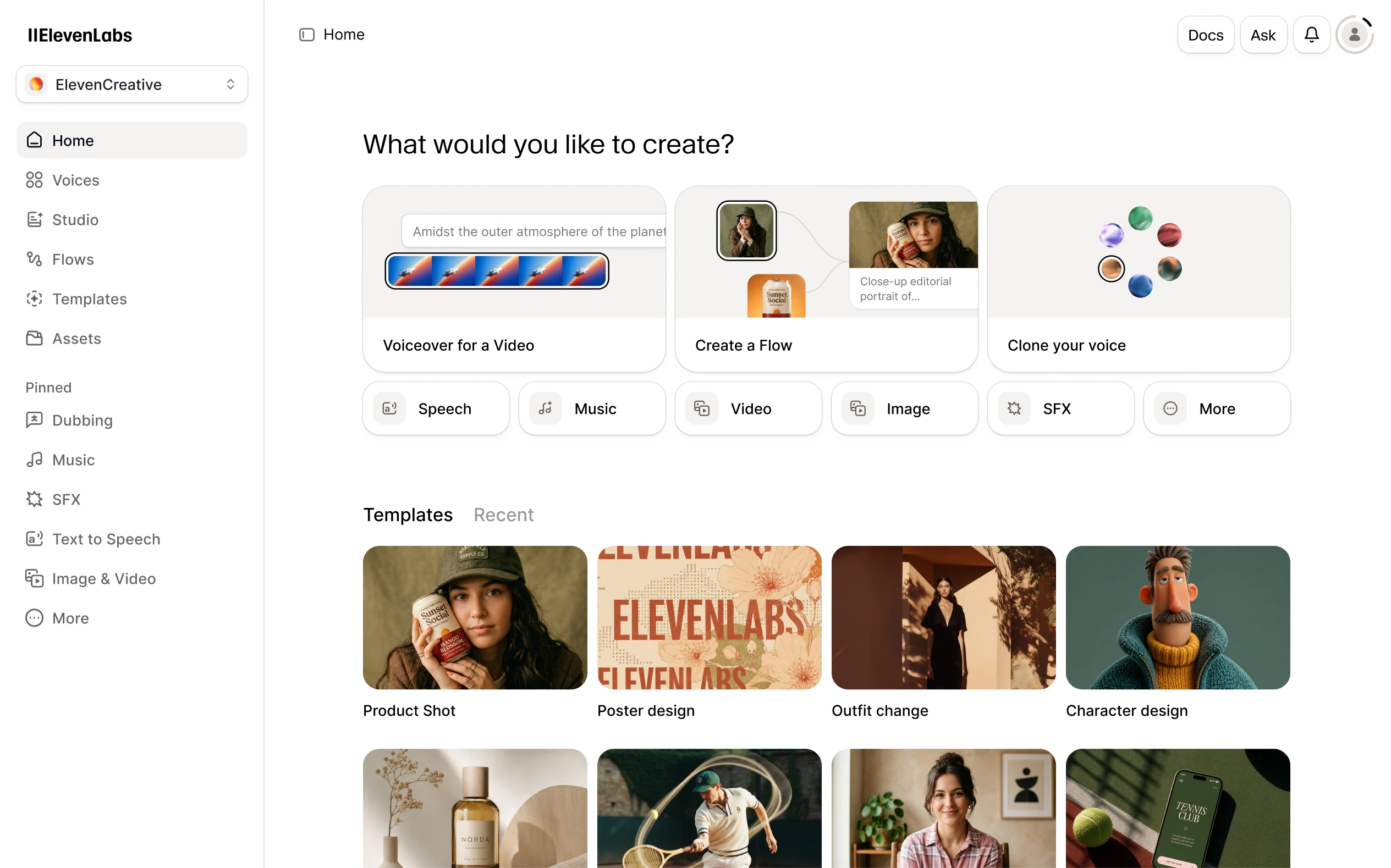
In ElevenLabs Text to Speech, the documented workflow is to enter the text, choose a voice and model, then generate. Start with a short section containing the trickiest words. Compare two voices using that same passage rather than judging one from a dramatic demo and another from a calm tutorial.
Keep a simple listening note for each candidate: Is every word intelligible? Does the delivery fit the audience? Does the opening sound welcoming without overselling the task? Choose a voice you are authorized to use. You do not need to clone a voice to evaluate this workflow.
Save the voice and model names with your working script. That small production record is useful when another editor needs to create a matching correction next week.
3. Fix difficult words before a full generation
Make a separate list of product names, abbreviations, dates and numbers. Write an unambiguous spoken version where needed: “October eighth” is easier to direct than a numeric date whose order depends on the audience. Keep the display text and spoken text as separate editorial choices.
ElevenLabs documents different controls across its models. Do not paste a recipe for an older model into a newer one and assume every speed control, tag or pronunciation feature works identically. Check the documentation for the model you selected, and change one variable at a time.
After a correction, listen to the whole sentence. A word can become accurate while the surrounding rhythm becomes awkward. Your goal is a sentence that sounds intentional, not merely a correctly pronounced token.
4. Assemble narration around the video
For a project with multiple sections, Studio provides timeline editing and paragraph-level narration. Its documentation also covers placing other media and exporting the result. Generate the approved script, then compare the timing with the screencast rather than assuming the text length will predict the duration.
Leave room for the viewer to see each change. A cursor movement, a newly opened menu and a confirmation state each need time to register. If narration overlaps the next action, shorten the sentence or extend the shot. Keep any background music low enough that the instructions remain effortless to hear.
When a paragraph changes, make a note of the reason. “Shortened to fit menu action” is more useful than “version seven” when you return to the project later.
5. Review the file you will actually publish
Export a new version after editing; an earlier download will not contain later changes. Listen to the complete exported file, first with headphones and then on an ordinary phone speaker. Check the opening, joins between sections, difficult words and the ending. Also verify that the audio still matches the final video edit.
Before commercial publication, check the current plan terms and the rights to your script and voice. Keep the final script, voice/model choices and approved export together. This guide is our suggested production workflow informed by official documentation; it is not a claim that we generated or benchmarked the sample audio.
Go to the source
Sources & further reading
Based on the official documentation below. Features and access can change; check the provider before making a decision.